If a name looks unreadable after you blur it, is it safe to share? Not necessarily. Blur and pixelation retain information from the original image, and a short name or number can be easier to guess when the surrounding conversation provides clues.
For sensitive text, use a solid, opaque cover with a small margin around every letter. LocalMark’s image redactor replaces the selected pixels when exporting a new PNG or JPG. Processing stays in your browser, with no file upload, payment or account required.
What each effect does
| Effect | What remains in the selected area | Practical use |
|---|---|---|
| Solid cover | The chosen color replaces the image pixels | Cover sensitive text completely |
| Pixelation | Blocks retain averages of original colors | Soften a picture; do not rely on it to remove text |
| Blur | Neighboring pixels mix while some structure remains | Reduce visual detail; inspect whether someone remains identifiable |
The security research project Bishop Fox Unredacter demonstrates recovery of pixelated text under particular conditions. That does not mean every mosaic can be reversed. It does mean that looking unreadable is not sufficient evidence that a sensitive string has been removed.
Check the whole screenshot
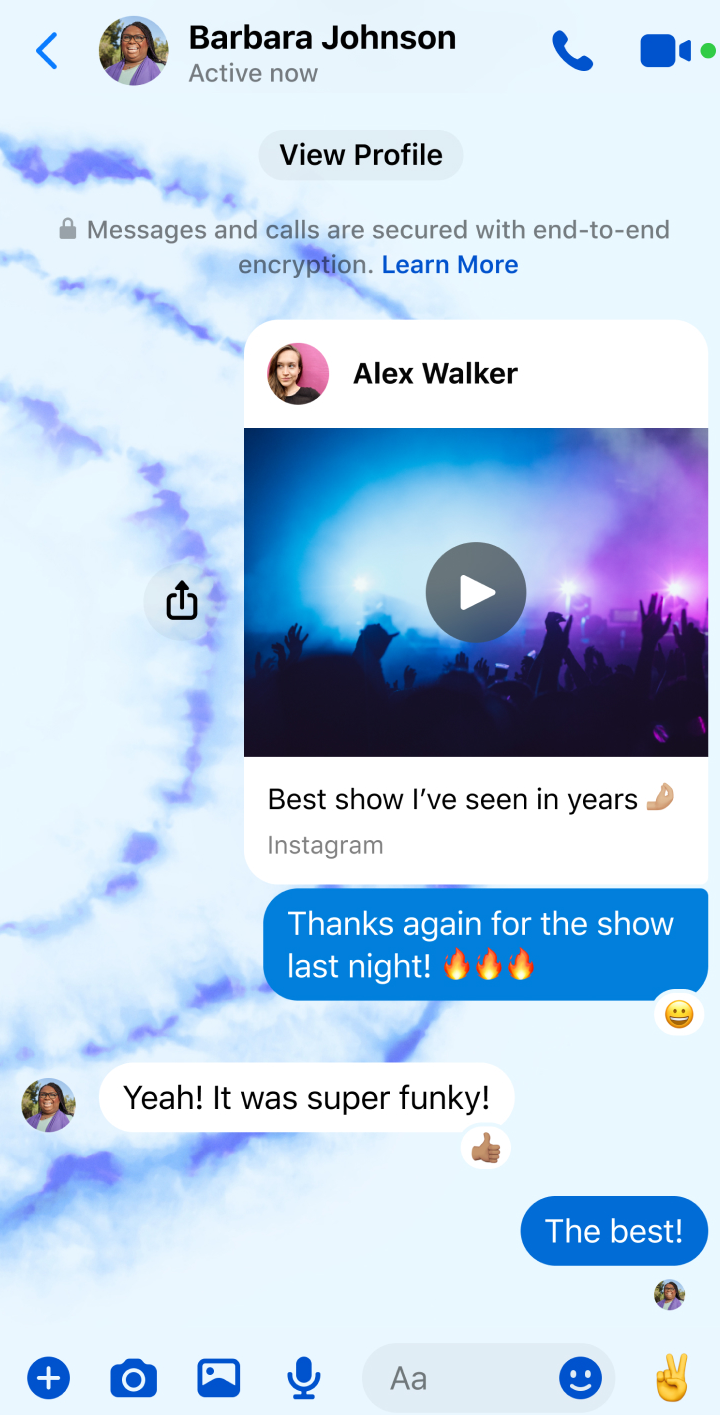
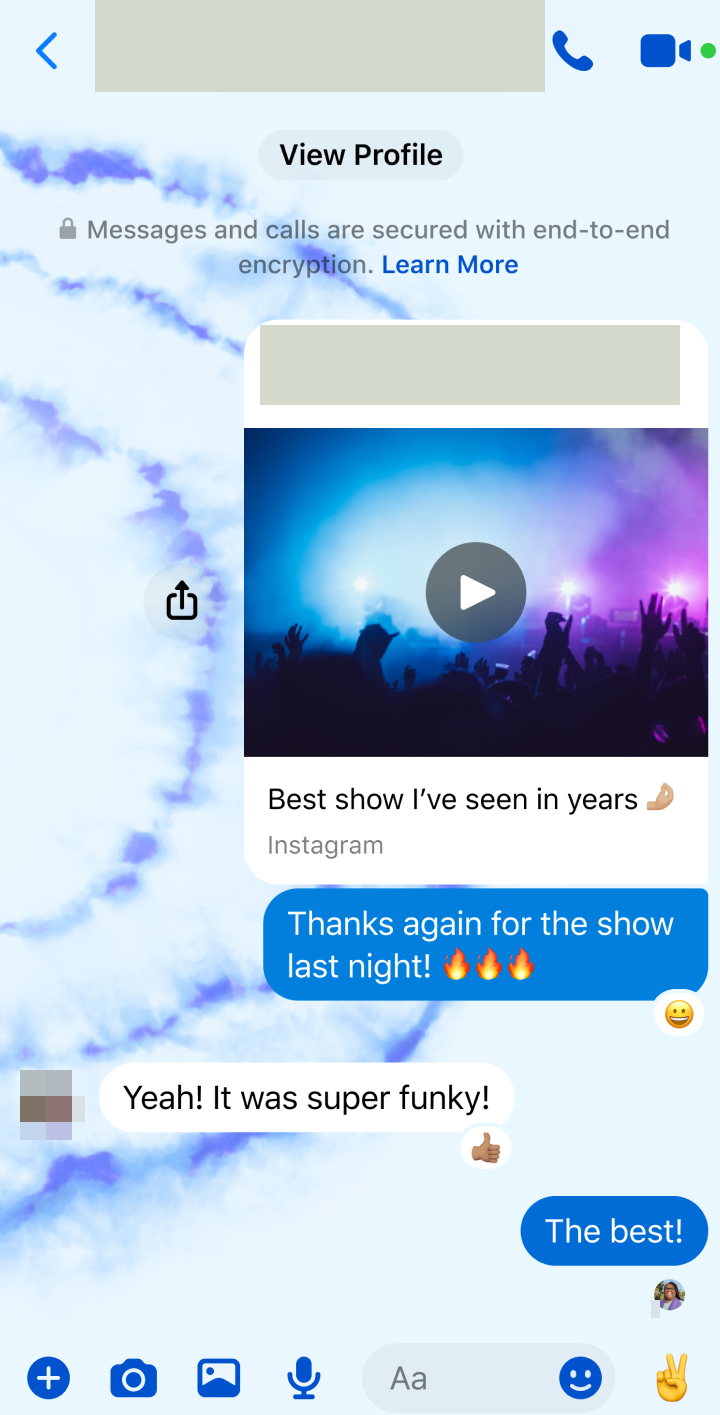
A contact’s name may appear in the header, a quoted reply and a shared link preview. Covering one occurrence leaves the others visible. Phone numbers and addresses may also appear in attached images or QR codes. Even after covering all of these, the wording and situation can identify someone to people who know them.
Original
Result
Make a clean, readable redacted copy
Open a PNG, JPG or WebP in the tool and draw a rectangle over each detail. Choose solid cover for private text. It does not have to be black: a light color close to the conversation background can be less distracting while remaining opaque.
Keep a small margin beyond letter edges, including descenders and underlines. Use similar colors and sizes for similar details so the remaining conversation stays readable. If a face must be unrecognizable, use full coverage and check other identifying details rather than assuming that a soft blur is enough.
See the Messenger screenshot guide for the editing steps, moving selected areas and checking repeated names inside shared cards.
Inspect the exported image
Download the new file, then open it at its original size. Confirm that the areas cover everything intended and that the rest of the screenshot still says what you meant to share. Keep the original separately, and make sure you send the redacted copy instead of accidentally selecting the source from your photo library.
The tool processes one image at a time with multiple areas, up to 16 million pixels. It does not automatically discover all sensitive information. Images and edit history are not saved automatically, so download the result before closing the tab. Prepare the public tool resources while connected if you want to reopen it offline in the same browser later.
Flattening the covers into image pixels removes the selected source pixels from that export; it does not remove identifying information elsewhere in the picture or in the original file you keep. Review the visible context as carefully as the covered areas.