A useful support screenshot shows what went wrong without exposing everything else on your screen. Cropping too tightly can remove the error context; forwarding a whole conversation can reveal customer names, addresses or an unrelated private message.
Decide what the recipient needs
For a bug report, preserve the error text, relevant screen and reproduction steps. For an order issue, retain the item and progress needed to explain the problem. Hide passwords, verification codes, access tokens, payment details and unrelated identities. If support needs an order reference, provide it through the agreed channel rather than publishing it in a public issue.
Redact the copy on your device
- Open image redaction and select the screenshot. Processing runs locally in the browser; files are not uploaded to a processing server. It is free and needs no account.
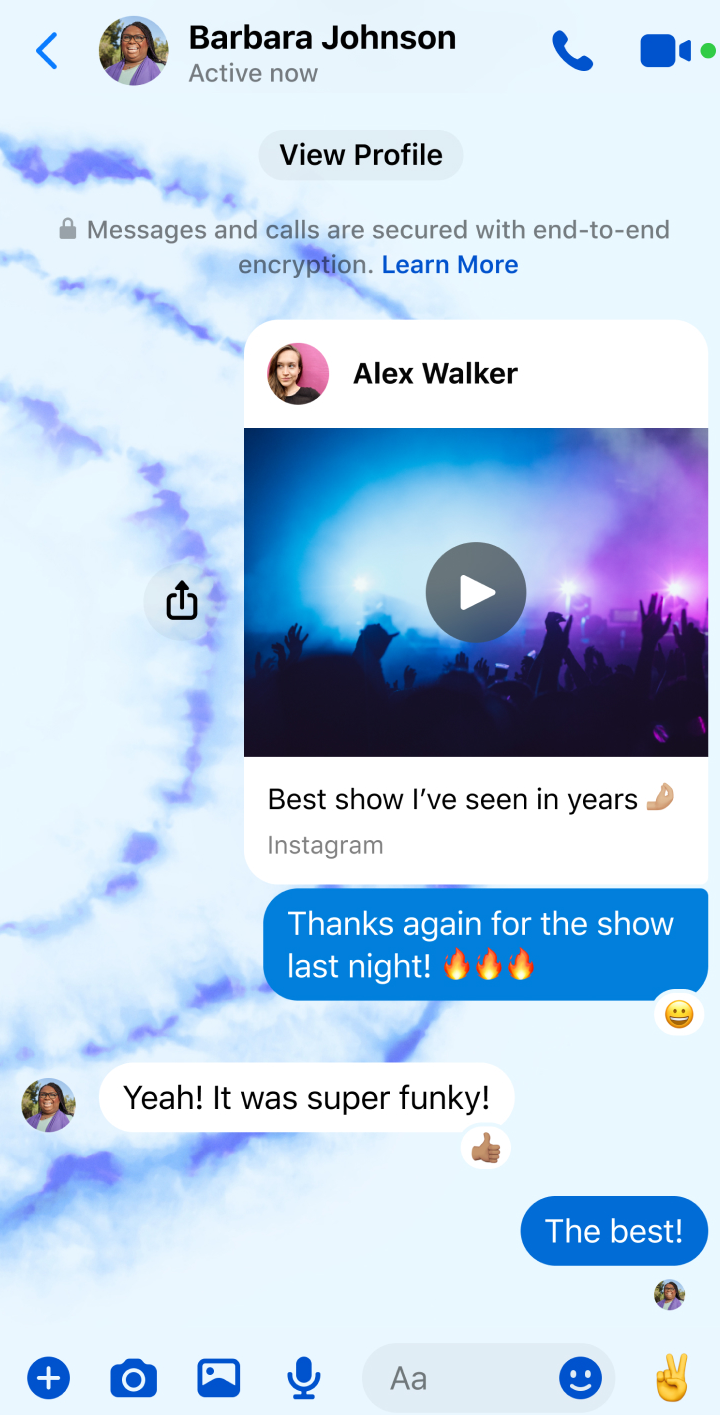
- Inspect the header, message body, quoted replies, notifications and input area. Private information may appear in several places.
- Draw a region over each sensitive detail. Use a fully opaque cover for secrets and identifying text. Blur and mosaic can soften an image but do not guarantee that hidden text cannot be inferred or recovered.
- Keep the useful error visible, export a copy, then reopen the exported file and inspect it before sharing.
Original
Result
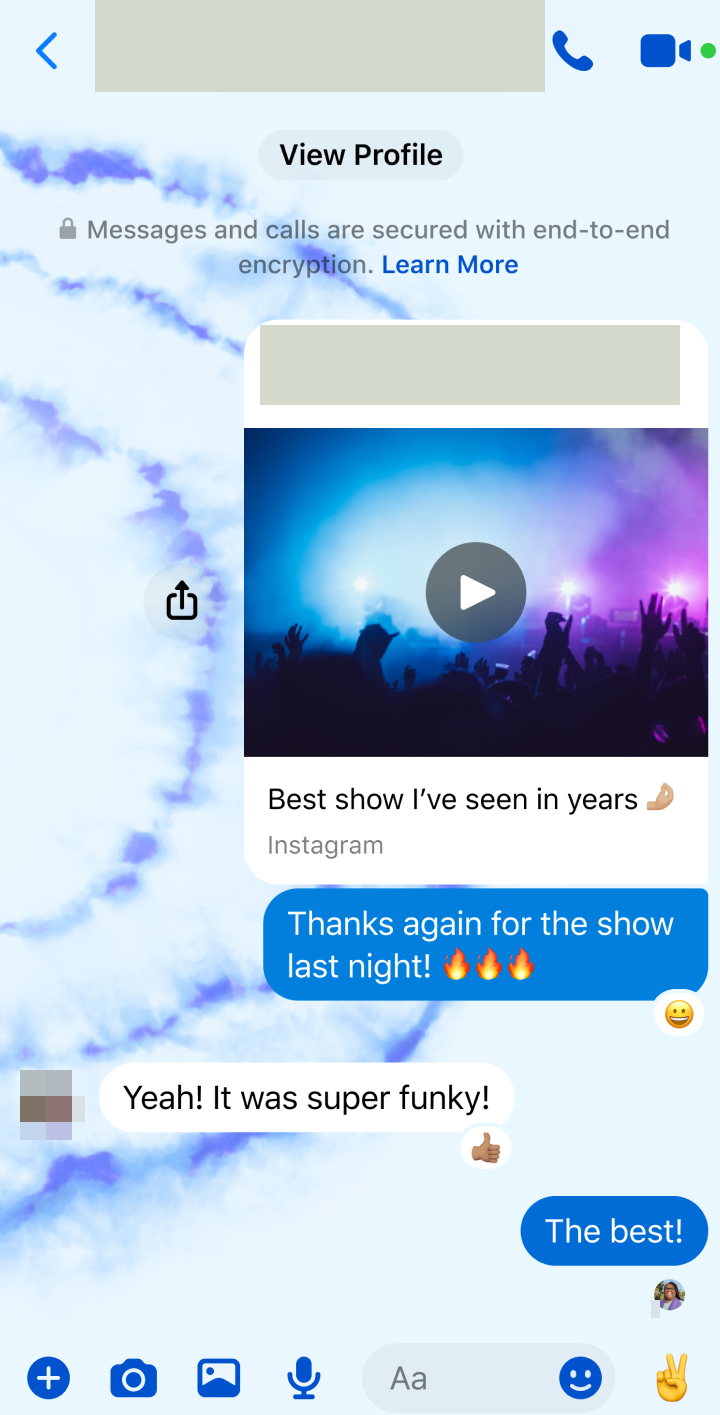
You choose the regions manually. LocalMark does not automatically detect every secret or decide what is safe to publish. Check repeated names and numbers further down the thread. A public bug report and a private support request may need different copies.
Package a sequence rather than a pile of screenshots
Redact each image first, then import the exported copies into images to PDF. Arrange them in reproduction order: one image becomes one page. Refer to page numbers in the report so the recipient can follow the sequence. Turn watermarking off when unnecessary, or use one shared purpose label when appropriate.
If the upload form has a size limit, use image compression on the redacted copies. Recheck small error text and covered areas afterwards. Keep original screenshots separately and select the processed files when attaching your report.
Common questions
Does this remove sensitive information from an existing PDF?
The redaction tool currently handles images. Build the PDF from already-redacted image copies; a watermark is not PDF redaction.
Can I work offline?
The first visit loads the site. Complete offline preparation on the privacy page before disconnecting to use the cached tools and resources. LocalMark does not submit the support ticket; you choose how to share the downloaded result.
See the chat screenshot checklist for conversation details to inspect, or the design-proof workflow when the screenshots are client review material.