A Messenger screenshot can help explain a support problem or share a useful conversation. It can also expose a contact’s name, profile photo, the people in a group, or details inside a forwarded preview. Decide what the recipient needs to see before sharing a copy.
LocalMark’s screenshot redactor runs in your browser. Image contents are not uploaded to a processing server, the tool is free, and no account is required. Start with the public Messenger example if you want to try the controls first.
What should you hide in a chat screenshot?
Check the conversation header, every visible profile photo, names inside quoted replies, and names repeated in shared cards. Then read the messages for phone numbers, email addresses, pickup locations, order references and links containing personal information. A cropped screenshot can still identify someone through its wording or context.
Messenger’s message protection and screenshot redaction solve different problems. A screenshot saved to your device is a separate image. Sharing that image gives its recipient the visible contents, even when the original conversation uses end-to-end encryption.
Redact a Messenger screenshot locally
- Open the tool and choose a PNG, JPG or WebP. You can also paste an image from the clipboard on a computer.
- Drag a rectangle around the first detail to hide. Repeat for other areas; each area can have its own effect.
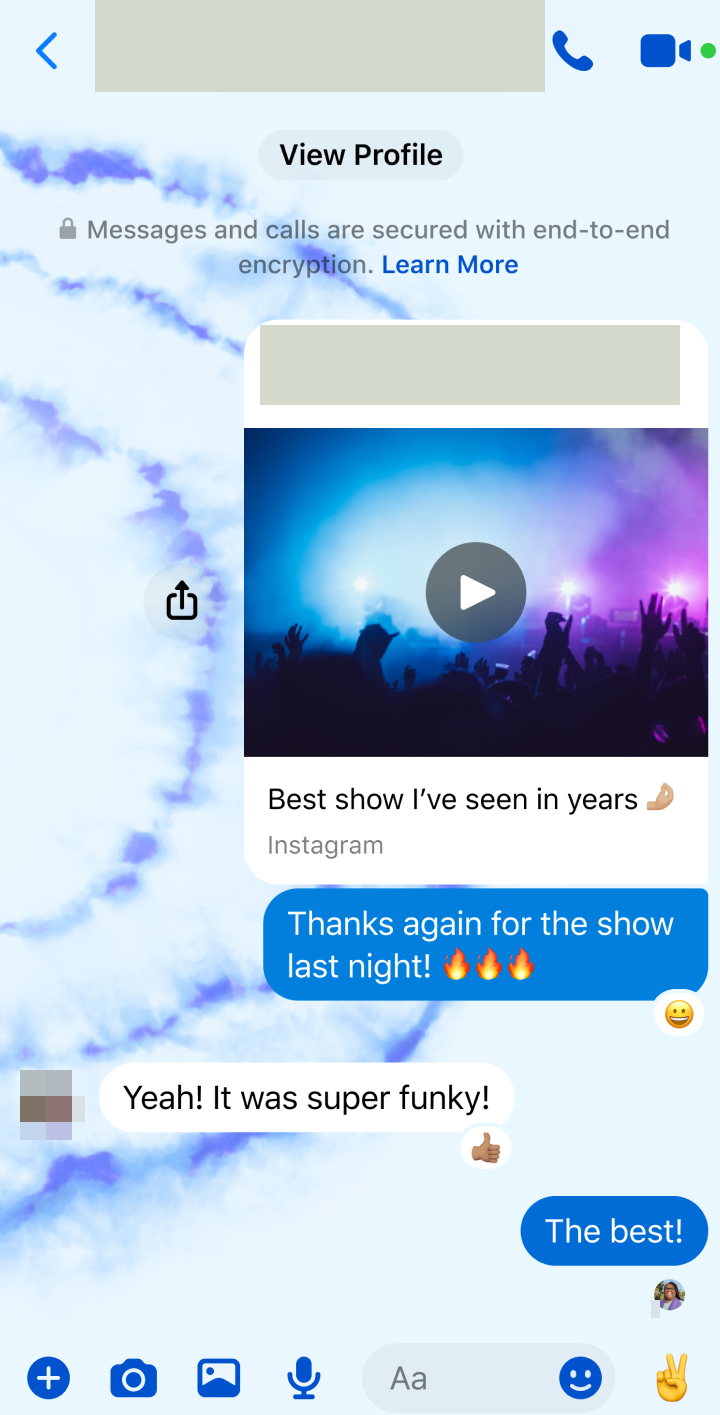
- Use solid cover for sensitive text. Choose a light color close to the chat background if you prefer a quieter result. Pixelation and blur can soften an avatar, but are not a reliable way to remove readable text.
- Select a numbered area to move it or adjust its coordinates and size. Undo and redo let you correct an edit.
- Export a new PNG or JPG. Open the downloaded image and inspect it at its original size before sending it.
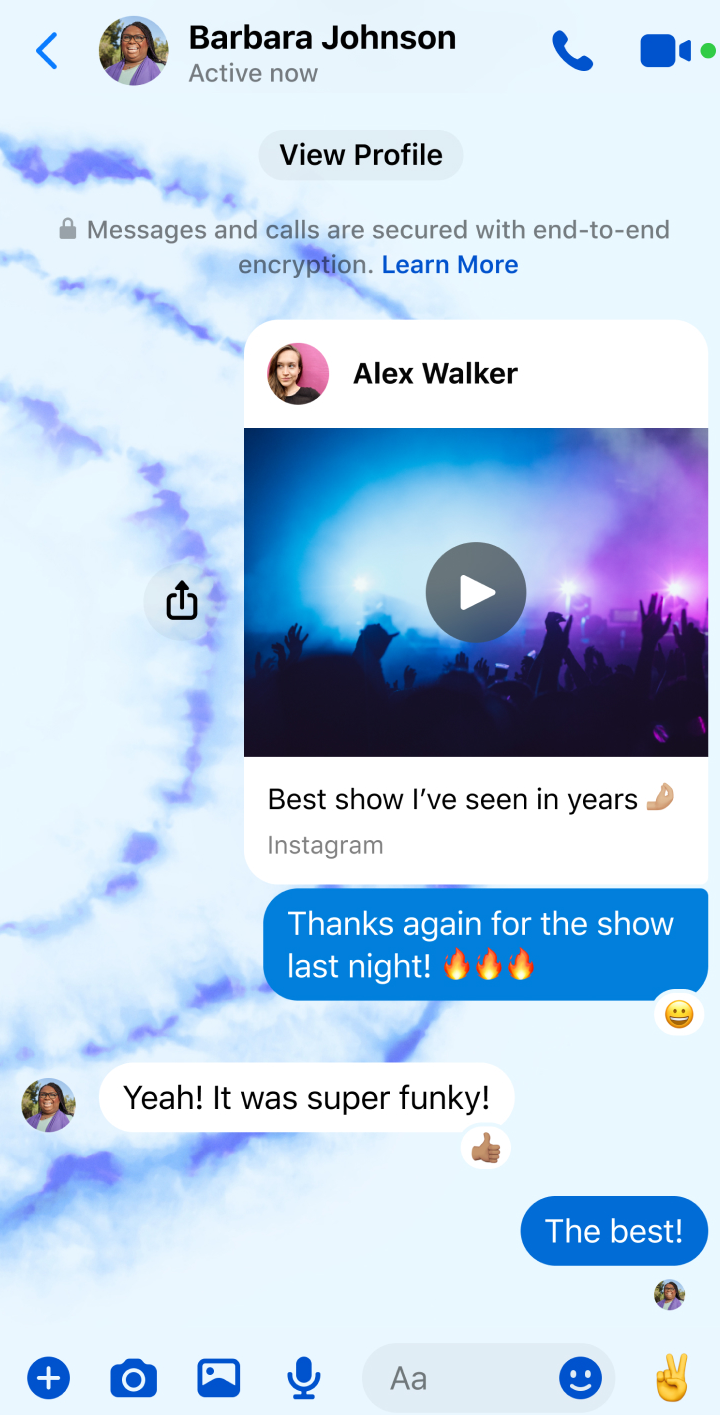
Original
Result
Remember names inside shared previews
A profile name is not always at the top of the chat. The Messenger example includes a shared card with a person’s name and image, plus small avatars beside messages. Covering only one location leaves the others visible. For a support request, keep the part that explains the problem and remove unrelated identifying details.
Use consistent rectangles with a small margin around letters. Keep the remaining conversation readable and in order. If your screenshot includes an attachment showing a face, address or QR code, inspect the attachment as well as the surrounding chat.
Does blur make text unrecoverable?
No. Blur and mosaic preserve aspects of the original image, and context can reveal a short name or number. A solid, opaque cover replaces the selected pixels when LocalMark exports the result. This still does not hide information elsewhere in the screenshot. Read blur versus pixelation versus solid redaction for practical examples.
Offline use and long screenshots
The first visit downloads the website and tool resources. While connected, select “Prepare offline”; afterward, you can reopen the prepared tool in the same browser without a connection. Your images and edit history are not added to that offline cache.
The editor handles one image at a time, with multiple areas, up to 16 million pixels. Save the result before closing the tab: edits are not automatically restored. To collect several already-redacted screenshots in one document, use images to PDF and review the final pages. The original Messenger messages remain unchanged.
Try a screenshot and check the downloaded result
Open the Messenger sample before using your own screenshot. It contains small profile photos and a shared preview: private details can appear inside a message card as well as beside the conversation.
| Detail | Edit | Check in the exported image |
|---|---|---|
| Repeated profile photos | Add a separate region for each occurrence | No face remains visible at an edge |
| Names in messages and previews | Cover the full text with an opaque solid color | No partial letters remain when zoomed in |
| Attachment or message content | Hide unrelated identifiers, keep the relevant explanation | A recipient can follow the problem without learning the hidden details |
Download a PNG and open that file at full size. If you also need JPG, export and inspect it separately: a smaller preview can conceal incomplete coverage. The downloaded copy contains the redaction pixels; it does not depend on keeping this editor open. Your source image is preserved.
The same manual workflow works for screenshots from WhatsApp, Slack, Discord or email when saved as PNG, JPG or WebP. The tool does not connect to those services, edit their messages or automatically find every private detail. For a support ticket, keep the error and sequence of events while hiding unrelated customer information; see support screenshot redaction.